Server Info 1.0.0: Bringing the Backend to the Frontend

Why pay for premium server monitoring plugins when you can get it for free? Let's talk about the total rebuild of the Server Info plugin.
I got tired of digging through cPanel just to check whether my PHP memory limit was actually applied after a config change.
You know the drill. You update a value in php.ini or your .htaccess, restart the server, and then you're left wondering if it actually took effect. So you SSH in, write a quick phpinfo() script, load it in the browser, squint at the output, and then remember to delete that script before someone else finds it and uses it to map your entire server environment.
That exact workflow is why I originally built the Server Info plugin. But the original version was rough. It got the job done, barely. So I sat down and rebuilt the whole thing from scratch for version 1.0.0.
And here's what bugged me about every other server monitoring plugin out there: they charge you a monthly fee to look at your own server's specs. Your own data, on your own hardware, behind a paywall. I don't think that's right. So everything that used to be "premium" in competing plugins, I packed into this release for free.
What Actually Changed in 1.0.0
The entire core got restructured. The plugin now loads faster, makes zero extra database queries unless an administrator is actively looking at the dashboard, and the code is organized with a proper singleton class pattern instead of the procedural mess I originally wrote.
But the stuff you'll actually notice is in the admin interface. Let me walk through the highlights.
Always-On Admin Bar HUD
This is the feature I'm most proud of. There's now a persistent heads-up display in your WordPress admin bar that shows your environment type, current PHP version, and live RAM usage percentage, right there at the top of every admin page.
Click on it and a dropdown reveals even more: your server IP, web server software (Apache, Nginx, LiteSpeed, whatever you're running), operating system, MySQL/MariaDB version, WordPress version, PHP memory limit, and the WP memory limit constant. All the stuff you'd normally have to SSH in to check, accessible in two seconds from any admin page.
I built this because I was constantly switching between my WordPress dashboard and SSH terminals trying to figure out why a heavy WooCommerce import was making the site sluggish. Now I can literally watch the memory usage climb in real time while I run operations. If a plugin activation spikes memory to 90%, I see it immediately. No more guessing.
Smart Environment Badges
Be honest. Have you ever run a quick test on what you thought was your staging site and accidentally modified a live production database? Yeah. We've all been there. The cold sweat is something else.
To stop that from ever happening again, the plugin auto-detects whether you're running on a Local, Staging, or Production environment and sticks a bright color-coded badge right in the admin bar. Local gets a green badge. Staging gets amber/orange. Production gets red. It's impossible to miss.
The detection works in layers. First it checks if WordPress's own wp_get_environment_type() function is available and returns a value. Then it falls back to checking your domain: .local, .test, or localhost patterns trigger the Local badge, while staging. or dev. subdomains trigger Staging. Everything else defaults to Production. It catches the vast majority of setups without any configuration.
Server Health Score
The dashboard now calculates an overall health percentage for your server environment. It evaluates your PHP version (anything below 8.3 gets a warning, below 7.4 gets a critical penalty), your PHP memory limit (under 256M triggers a flag), whether wp-config.php is writable (it shouldn't be), whether WordPress core is outdated, and your current memory and disk usage.
You get a score out of 100 with a clear Excellent, Fair, or Critical rating and a breakdown of exactly what's costing you points. It's the first thing you see when you open the dashboard, so you always know where your server stands.
System Resources at a Glance
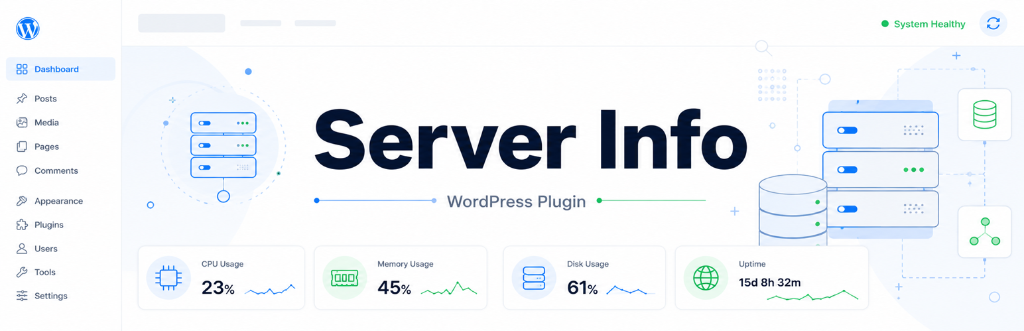
The Overview tab now has three circular gauge charts showing your CPU load average, PHP memory usage percentage, and disk space usage in real time. Below those are your total PHP memory limit and current used memory. If something is spiking, you'll see it immediately without needing any external monitoring tool.
Comprehensive Database Monitoring
Databases are usually the first thing to fall over when traffic spikes. The Database tab shows your MySQL or MariaDB version, client version, database size, charset, collation, table prefix, and two settings that most people never look at until something breaks: Max Connections and Max Allowed Packet.
I also added a Top 5 Largest Tables display. If your wp_options table is bloating to 50MB because of autoloaded transients, you'll spot it here instantly. That one feature alone has helped me diagnose performance issues on client sites multiple times.
Datacenter Location
The plugin detects where your server is physically hosted by querying the IP geolocation API. It shows you the city, country, and ISP/hosting provider. The result gets cached for 30 days via a WordPress transient so it doesn't make repeated external requests.
Caching Detection
Is Redis actually running? Is OPcache enabled and hitting properly? The Caching tab auto-detects object caching modules and tells you if the object-cache.php drop-in file is active in your wp-content directory. If OPcache is enabled, it even shows you the current hit rate percentage.
I wrote about why object caching matters for WordPress performance in a separate post if you want the deep dive on that topic.
WordPress Core Tab
Shows your active theme, all active and inactive plugins with their authors, WordPress memory limits (both WP_MEMORY_LIMIT and WP_MAX_MEMORY_LIMIT), debug mode status, WP-Cron status, and the next 3 upcoming cron events with their scheduled times. Handy when you're debugging scheduled tasks that aren't firing.
PHP Information Tab
A full, beautifully styled phpinfo() output right inside the WordPress admin. No more creating temporary PHP files on your server just to check if an extension is loaded.
Diagnostics and Logs Tab
This is the troubleshooting powerhouse. It shows detailed health check cards for PHP version, memory limit, wp-config.php security, and WordPress core status, each with their score impact clearly labeled. Below that, there's a live view of your debug.log file (last 30 lines) so you can monitor errors without leaving the dashboard.
File Permission Checks
The plugin reports the current file permissions for wp-config.php, wp-content, and your uploads directory. If wp-config.php is sitting at writable permissions, you'll see it flagged immediately. This ties directly into the health score.
Dashboard Widget and Footer Info
Beyond the dedicated settings page, there's a compact dashboard widget on your main WordPress Dashboard showing key server stats (OS, IP, hostname, PHP version). Plus, both the left and right sides of the admin footer get replaced with live server information, so you're never more than a glance away from your environment details.
Security
Showing server specs through a web interface is inherently risky if you don't handle it carefully. PHP versions, extension lists, and memory limits are exactly the kind of reconnaissance data an attacker would love to get their hands on.
So I locked it down. Every data point, from the admin bar HUD to the dashboard to the footer replacements, is gated behind manage_options capability checks. Only Administrators see anything. Normal users, editors, authors, contributors, they all get the standard WordPress admin bar and footer with zero server info exposed.
The plugin queries local server functions for nearly everything. The one exception is datacenter location detection, which makes a single cached request to a geolocation API to determine where your server is hosted. That result gets stored in a transient and isn't repeated for 30 days. No visitor data is tracked or sent anywhere.
Give It a Shot
If you manage WordPress sites and you're tired of SSH-ing into servers just to check basic configuration, this might save you some time.
Download it from the WordPress Plugin Directory and let me know what you think. If you find it useful, a quick 5-star rating on the plugin page goes a long way in helping other people find it.
I've already got a list of features planned for the next release, but I'd love to hear what you'd want to see. Hit me up on Twitter or leave a review with your suggestions.
Working on a WordPress project?
Let's talk about what you're building.
I'm available for custom plugin development, performance optimization, and headless WordPress projects.