There Has Been a Critical Error on This Website: How to Find the Real Cause
WordPress showing "There has been a critical error on this website"? Here's how to find the exact plugin, theme or PHP change behind it, even when you can't get into wp-admin.
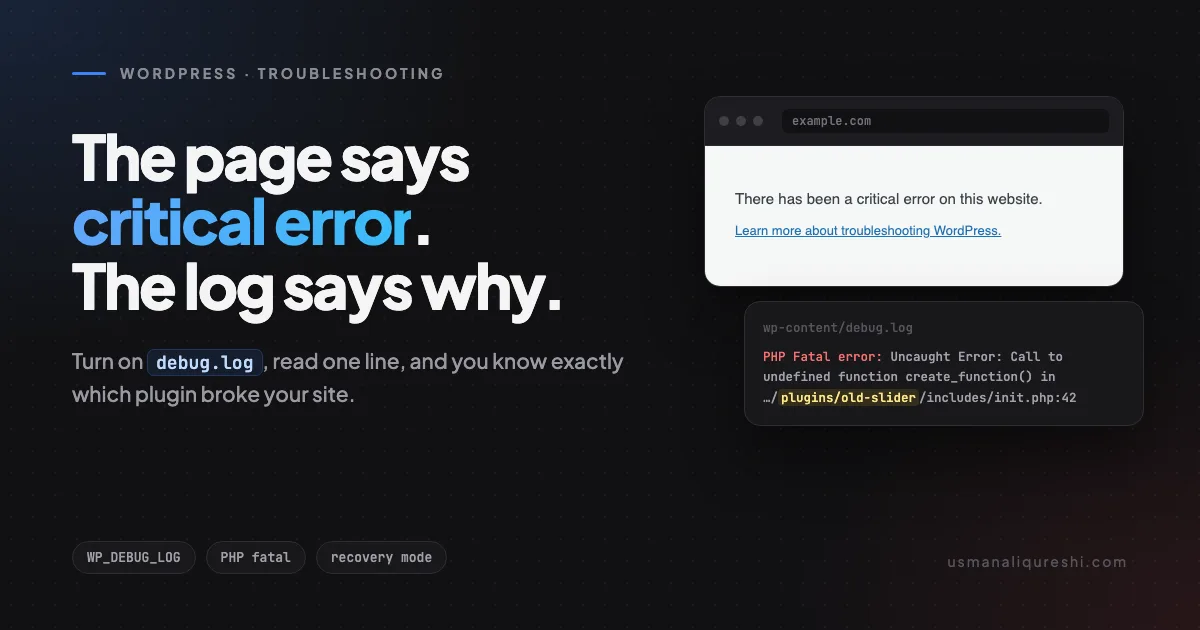
You load your site and instead of your homepage you get one grey sentence: "There has been a critical error on this website." No details. No hint. Sometimes wp-admin shows the same thing, so you can't even log in to look around.
Here's the thing most guides skip. That message isn't the error. It's WordPress hiding the error from your visitors, which is the right call, but it also hides it from you.
Behind it there's always a specific PHP fatal error with a file name and a line number. Find that line and the fix is usually five minutes of work. So that's what this post is about: getting to that line as fast as possible, then fixing it without breaking anything else.
What the message actually means
Since WordPress 5.2, a built-in handler catches fatal PHP errors. Instead of a blank white screen (the old "white screen of death"), it shows the critical error page and tries to email the site admin a recovery link.
A fatal error means PHP hit something it can't continue past. The usual suspects:
- A plugin or theme update that calls a function or class that doesn't exist.
- A PHP version upgrade that removed something old code still relies on.
- Two plugins declaring the same function.
- An update that only half-finished, leaving mismatched files behind.
- PHP running out of memory.
The good news: every one of these leaves a precise trace. You just need to read it.
Step 1: check the admin email first
If the email part worked, WordPress sent your admin address a message with a subject like "Your Site is Experiencing a Technical Issue". It names the plugin or theme that failed and includes a recovery mode link.
That link logs you into wp-admin with the broken plugin or theme paused, just for your session. You can deactivate it, update it or roll it back from the dashboard like normal. Visitors still see the error until you fix it, but you're in.
Two catches worth knowing:
- WordPress rate-limits that email, so if the error has been happening for a while you might not get a fresh one.
- If your site can't send email in the first place, the message never arrives. That's more common than you'd think, and I covered why in WordPress Contact Form Not Sending Email? The same broken mail setup that kills your contact form kills recovery emails too.
No email? No problem. The next step works every time.
Step 2: turn on the debug log
Open wp-config.php in your host's file manager or over SFTP. Find the line that says WP_DEBUG (it's usually there, set to false) and replace it with these three lines:
define( 'WP_DEBUG', true );
define( 'WP_DEBUG_LOG', true );
define( 'WP_DEBUG_DISPLAY', false );
They need to sit above the line that says "That's all, stop editing!".
What this does: errors get written to wp-content/debug.log, but nothing gets printed on the page, so your visitors don't see file paths and stack traces. Never set WP_DEBUG_DISPLAY to true on a live site. It leaks your server's folder structure to anyone who loads the page.
Now reload the broken page once, then open wp-content/debug.log.
If the log is empty, check your host's PHP error log too. On cPanel there's often an error_log file in public_html or in the folder where the error happened, and there's an "Errors" screen in the dashboard.
Step 3: read the fatal error line
Scroll to the bottom of the log and look for a line starting with PHP Fatal error. It'll look something like this:
PHP Fatal error:  Uncaught Error: Call to undefined function create_function()
in /home/site/public_html/wp-content/plugins/old-slider/includes/init.php:42
Ignore the noise around it and pull out two things:
- The path.
wp-content/plugins/old-slider/tells you exactly which plugin. If it sayswp-content/themes/..., it's your theme. If it sayswp-includesorwp-admin, the cause is usually still a plugin further down the stack trace, so keep reading the lines after it. - The error type. This tells you why.
Here's how to read the common ones:
| Error says | What it usually means |
|---|---|
| Call to undefined function | Old code using something newer PHP removed, or a plugin that depends on another plugin you deactivated. |
| Class "..." not found | A half-finished update, or a missing dependency plugin. |
| Cannot redeclare | Two plugins (or a plugin and your theme) define the same function. Often a duplicate plugin install. |
| Allowed memory size of ... bytes exhausted | PHP ran out of memory. Sometimes it really needs more, often something is looping. |
| Uncaught TypeError | Code written for older PHP that's stricter now. Very common right after a PHP upgrade. |
Step 4: fix it without wp-admin
Once you know the culprit, take it out of the picture.
For a plugin, rename its folder. Go to wp-content/plugins/ and rename old-slider to old-slider.off. WordPress can't find it, so it deactivates it automatically. Reload the site. If it comes back, you've found your problem.
For the theme, rename the active theme's folder the same way. WordPress falls back to a default theme like Twenty Twenty-Five, as long as one is still installed. If you deleted all the default themes, upload one first.
If you have SSH and WP-CLI, it's faster:
wp plugin deactivate old-slider --skip-plugins --skip-themes
The two --skip flags matter. Without them, WP-CLI loads WordPress normally, hits the same fatal error and stops.
Not sure which plugin it is because the log points somewhere vague? Rename the whole plugins folder to plugins.off. Every plugin deactivates at once. If the site loads, rename it back and then disable plugins one by one until it breaks again. Slow, but it always works.
The PHP upgrade case
If the error started right after your host upgraded PHP (or you clicked that upgrade button yourself), you've got two options.
The quick one: roll PHP back. On cPanel that's usually "MultiPHP Manager" or "Select PHP Version". Pick the version you were on before and the site comes back immediately.
That buys you time. It doesn't fix anything. Old PHP versions stop getting security fixes, and the plugin that broke is telling you it hasn't been maintained. The real fix is to update the plugin, replace it with something maintained, or patch the code if it's custom.
In my experience, PHP upgrades break abandoned plugins far more often than they break WordPress itself. If a plugin hasn't been updated in two years, treat the critical error as a warning about that plugin, not about PHP.
The memory limit case
If the log says Allowed memory size exhausted, you can raise the limit in wp-config.php:
define( 'WP_MEMORY_LIMIT', '256M' );
Your host's PHP limit still caps this, so if it doesn't help, check the PHP memory setting in your hosting panel.
But be a bit suspicious here. A normal WordPress page doesn't need 256MB. If the error keeps coming back at a higher limit, something is eating memory: a runaway loop, a huge query, an import job. More memory just makes it fail slower.
When the error only appears in the editor
Sometimes the front of the site is fine and you only get the critical error when you edit a page or save a post. The process is the same. Turn on the debug log, trigger the error once, and read the fatal line. Editor errors often come from a plugin hooking into saving or into the block editor's REST requests, so the path in the log will still point at it.
Clean up afterwards
This part gets forgotten all the time.
Once the site is fixed, set WP_DEBUG back to false and delete wp-content/debug.log. That file sits in a public folder. Anyone who guesses the URL can read it, and it's full of server paths and plugin details an attacker would love to have.
If you want logging permanently, point it somewhere outside the web root instead:
define( 'WP_DEBUG_LOG', '/home/youruser/logs/wp-debug.log' );
I wrote more about locking down this file in Securing wp-config.php: 5 Rules Every Agency Ignores.
Quick checklist
- Check the admin inbox for the recovery mode email and link.
- Turn on
WP_DEBUG_LOGwith display off. - Reload once, read the last
PHP Fatal errorline. - Path tells you which plugin or theme. Error type tells you why.
- Rename that folder or deactivate it with WP-CLI using the skip flags.
- PHP upgrade? Roll back to buy time, then replace or fix the plugin.
- Turn debugging off and delete
debug.logwhen you're done.
The critical error page looks scary because it tells you nothing. But the answer is always sitting in a log file, one line long. Read that line first and you'll skip hours of guessing.
Keep Reading
-
WordPress Contact Form Not Sending Email? The Fix That Survives Shared Hosting: if the recovery email never showed up, start here.
-
Securing wp-config.php: 5 Rules Every Agency Ignores: the file you just edited deserves better protection.
-
Server Info 1.0.0: Bringing the Backend to the Frontend: see your PHP version and memory limits at a glance before the next upgrade.

Written by Usman Ali Qureshi
Senior WordPress and PHP developer with 12+ years in WordPress. I spent over a decade at InspiryThemes, home of RealHomes, one of ThemeForest's best-selling real estate themes, and I've shipped six plugins of my own. Everything I write here comes from fixing it on real sites first.
More about meWorking on a WordPress project?
Let's talk about what you're building.
I'm available for custom plugin development, performance optimization, and headless WordPress projects.