WP-Cron Not Running? Confirm It and Switch to a Real Cron Job
WordPress cron not running? Scheduled posts and backup jobs pile up while you wait for visitors. Confirm the misses with WP-CLI, then switch to a real cron job.
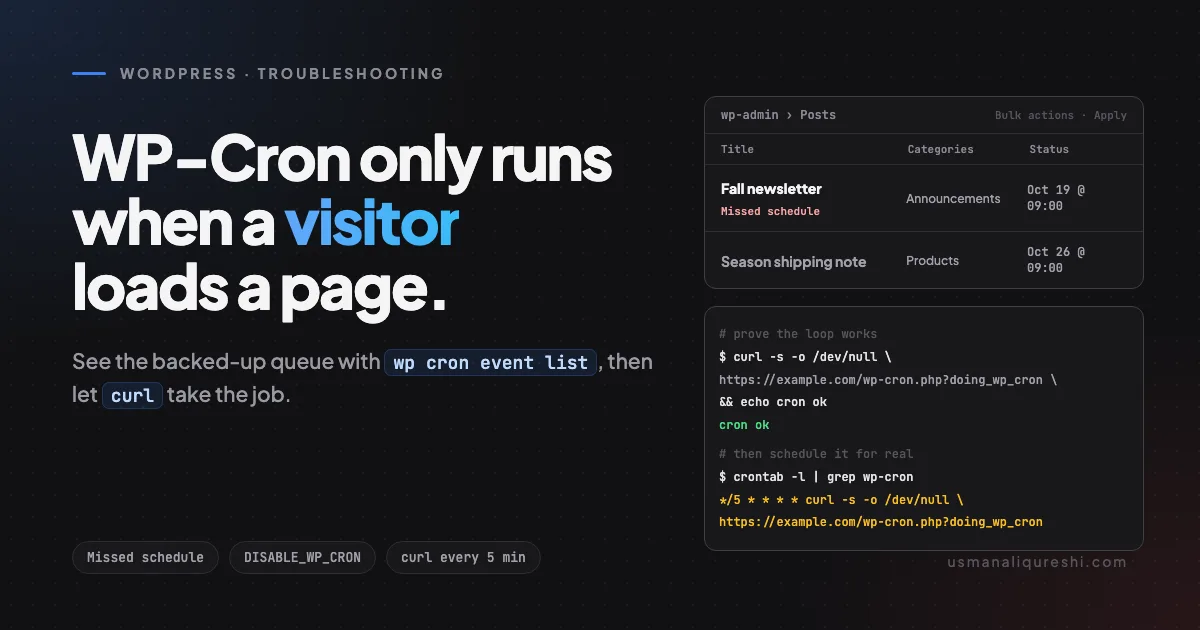
You scheduled that post for 9:00 this morning. It's 9:00. The Posts screen still says Missed schedule.
The same show repeats with backup plugins that skipped their nightly run, email digests that fire three days late, and cache plugins whose cleanup jobs quietly never happen. Everything WordPress was supposed to run in the background either never happens or happens very late.
Here's the thing most tutorials skip: WordPress doesn't have a scheduler. It has a passenger called WP-Cron that hitches a ride on page loads. No visitors, no ride. The good news: you can prove a stalled queue with two WP-CLI commands and fix it permanently with one line in wp-config.php and one real cron job.
Why WordPress cron is a passenger, not a clock
A real scheduler (Unix cron) wakes up on the clock. WordPress's system works the other way around:
- A request reaches WordPress. Any request: a blog page, a feed, an admin screen.
- WordPress checks whether any scheduled events are due.
- If yes, it fires a request to
wp-cron.phpon your own site and goes on serving the page. That background request runs everything that's due.
Every part of that depends on traffic. If nobody visits, nobody asks the "anything due?" question, so nothing runs. On a quiet site, scheduled posts can sit for hours; on a staging site with caching and no visitors, they can sit forever.
Two supporting actors make the misses worse:
- Full-page caches. If your cache layer serves HTML directly, the request never reaches WordPress at all, so the check never even happens.
- wp-admin visits. Admin screens always run PHP, which is why logging in seems to "restock" your schedule: each visit drains part of the backlog. That's the illusion that wp-cron works fine.
It's not broken. It was never a clock in the first place.
And the impact is bigger than scheduled posts. WP-Cron is the delivery channel for every scheduled job on the site: core maintenance such as update checks and cleanups, plus whatever plugins schedule, like nightly backups, sitemap refreshes, license checks, and email digests. When the passenger stops getting rides, all of them wait in line in the order they fell due.
Confirm the misses with WP-CLI
Diagnose before you change anything. With SSH access, list the queue:
wp cron event list --fields=hook,next_run_relative,interval
Look at next_run_relative, WP-CLI's relative time per event. A healthy queue counts down: every row reads like "11 hours 57 minutes" into the future. Rows that sit at now, drift backwards, or refuse to change between two visits are overdue: scheduled, past their time, and not run.
Now run everything that's due, directly from the command line:
wp cron event run --due-now
It prints each hook as it executes. Check the page again right after. If your "Missed schedule" post is suddenly live, you've confirmed the exact problem: the queue itself works, the code works, only the visitor-trigger is dead. That's the green light for the real fix below.
One caution before you celebrate: wp cron event run --due-now clears the queue once. It doesn't prove the queue will drain itself next time. Watch one more thing over the next few quiet hours: overdue rows creeping back into wp cron event list. That recurring pattern is the fingerprint of a dead trigger, and the checklist at the end uses it as your before-and-after proof after the fix.
No SSH on your host? Site Health (under the Tools menu) covers this from wp-admin: overdue scheduled events appear in its checks, and a failed loopback shows up with the HTTP status it received. To read the queue without a terminal, the free WP Crontrol plugin lists every scheduled event and its next run in an admin screen: next_run_relative in a browser. The drive-by test below (hitting wp-cron.php directly) still works as a reachability check from outside, as long as you remember what it can and can't prove.
Cause 1: caching keeps requests away from PHP
WP-Cron only triggers when a request actually reaches WordPress. On a site with aggressive full-page caching, nginx or a CDN answers straight out of the cache and PHP never starts, so nothing asks whether events are due.
You can confirm the endpoint still answers once it does get hit (a direct hit runs due events itself):
curl -s -o /dev/null -w "%{http_code}" https://example.com/wp-cron.php
200 means the endpoint is reachable. But whatever the code says, don't try to poke a hole in your cache config to let cron through. If a page load is your trigger, you're trading cache hits for cron runs forever. Skip to the fix and give the job to the server instead.
Cause 2: the loopback request is being blocked
When WordPress triggers cron, your own server requests your own site's URL. Some hosting security layers refuse exactly that pattern: request from the server, addressed to itself. The queue then waits for the next request, which triggers the same doomed loopback, and so on.
The test is the command above with one wrinkle: run it on the server, over SSH. A curl from your laptop shows what an outside visitor sees, and the loopback problem only exists when the server requests itself. Anything other than a 200 (403, 500, a connection refused) tells you the spawn path is dead. If SSH isn't available, the Site Health loopback check runs this same request from wp-admin. This is the classic case where scheduled posts "work when I'm logged in, then miss."
Again, the answer is to stop relying on the loopback entirely.
The fix: a real cron job
Three steps, five minutes. Order matters on the first two: configure the cron job before you disable the built-in trigger, so the queue never goes leaderless.
1. Add the cron entry. In cPanel (or your host's cron editor), create a job that runs every five minutes:
You can use the Every-5-Minutes preset, or paste the raw line:
*/5 * * * * curl -s -o /dev/null 'https://example.com/wp-cron.php?doing_wp_cron'
What it does: every five minutes, curl asks your own wp-cron.php to run what's due, and core treats it as an external caller. Keep doing_wp_cron at an empty value, exactly as shown. In wp-cron.php, an empty value is the "Called from external script/job" path: the endpoint sets its own lock and drains the queue. Don't "improve" it to ?doing_wp_cron=1: that value gets compared against the lock key a normal spawn passes around, finds no match, and wp-cron.php exits without running anything. The parameter's second job is cache-busting: it gives proxies and CDNs a URL that isn't an ordinary page, so the request is more likely to reach PHP. The load trade is small: one PHP boot of a few dozen milliseconds, five times an hour, and curl -s -o /dev/null keeps the job silent (no email from cPanel's cron daemon).
If your host's shell lacks curl, wget does the same job:
*/5 * * * * wget -q -O /dev/null 'https://example.com/wp-cron.php?doing_wp_cron'
2. Turn off the page-load trigger in wp-config.php:
define( 'DISABLE_WP_CRON', true );
Add it with your other custom lines, above the comment that says "That's all, stop editing!". That spot is not cosmetic: wp-config.php requires wp-settings.php right at that line, so a define placed below it only exists after WordPress has finished loading, and the built-in trigger's check has already run by then. Despite the scary name, this doesn't disable scheduled events. Scheduling continues as normal; you've only stopped the visitor-driven runner that was supposed to drain the queue. Now the server cron is the only runner, and it never sleeps.
An alternative if you have WP-CLI on the box and prefer to skip HTTP entirely:
*/5 * * * * cd /home/example/public_html && /usr/local/bin/wp cron event run --due-now
(Adjust both paths: which wp gives you the binary's absolute path. Cron runs commands with a bare-bones $PATH, and a bare wp in the crontab is the most common command not found surprise with this variant. It also sidesteps cache and loopback issues completely, since it runs inside WordPress via PHP.)
3. Prove it end to end. Schedule a test post for twenty minutes ahead, then close wp-admin. With the cron entry in place, it should publish within one interval of the scheduled time. Two extra spot checks if you want them: run crontab -l | grep wp-cron (or reopen the Cron Jobs screen) to confirm the line is saved, and open https://example.com/wp-cron.php in a browser. WordPress answers with a blank page, which is what a healthy drain looks like from outside.
The multisite wrinkle
Each site on a network owns its own cron queue. One curl to the main site's wp-cron.php won't drain the other sites. Either repeat the cron line per site, or schedule one entry that walks the network with WP-CLI:
wp site list --field=url | while read -r url; do wp --url="$url" cron event run --due-now; done
If your WP-CLI is new enough, wp cron event run --due-now --network walks the whole network in one command. The flag only landed in the cron command package recently and isn't in a stable WP-CLI release yet at the time of writing, so run wp help cron event run and only use --network if your build lists it. Without it, the loop above is the portable answer, and it doubles as a per-site spot check: wp --url=sub.example.com cron event run --due-now.
What changes after the switch
- Scheduled posts publish within one interval of their time. An event due at 9:00 with a five-minute cron goes live by 9:05, not whenever the next visitor shows up.
- Backup and cleanup jobs stop drifting. Their plugins schedule events; the cron drains them; nothing stays queued overnight.
- Under load, fewer overlapping runners. WordPress lets only one cron runner through at a time behind a 60-second lock (
WP_CRON_LOCK_TIMEOUT), and while events were due, page and admin loads kept spawning fresh candidates. Once the server cron owns the schedule, browser traffic stops triggering background workers, which on small shared hosts clears some contention for worker slots.
Quick checklist
wp cron event listand find rows whosenext_run_relativeisn't counting down.wp cron event run --due-now, then check whether the stuck posts and jobs actually ran.curl -w "%{http_code}"againstwp-cron.phpto see whether the endpoint answers at all.- Add the server cron entry (every 5 minutes, silent output).
- Set
DISABLE_WP_CRONto true in wp-config.php. - Ten minutes later, re-run
wp cron event list: no overdue rows should remain.
Five minutes of plumbing buys you a scheduler that keeps its promises whether or not anyone is watching. Scheduled posts land when you said they would, backups take their window, and the 9:00 newsletter goes out at 9:00.
Keep Reading
- Securing wp-config.php: 5 Rules Every Agency Ignores: you just touched wp-config.php; these rules keep that file and your site safe.
- There Has Been a Critical Error on This Website: How to Find the Real Cause: a mis-keyed edit to the same file gives exactly this message. Here's how to trace it fast.

Written by Usman Ali Qureshi
Senior WordPress and PHP developer with 12+ years in WordPress. I spent over a decade at InspiryThemes, home of RealHomes, one of ThemeForest's best-selling real estate themes, and I've shipped six plugins of my own. Everything I write here comes from fixing it on real sites first.
More about meWorking on a WordPress project?
Let's talk about what you're building.
I'm available for custom plugin development, performance optimization, and headless WordPress projects.